We remain fully operational. Our teams are working around the clock to ensure your deliveries continue safely.

DOWNLOAD THE APP


Customer Services
Copyright © 2025 Desertcart Holdings Limited
DOWNLOAD THE APP

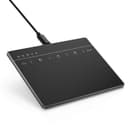

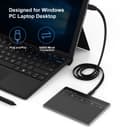
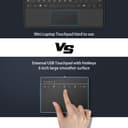


🖐️ Elevate your workspace with precision touch—because your productivity deserves the best!
The Seenda Touchpad Trackpad is a high-precision external USB touchpad designed for Windows 7 and 10 devices. Featuring a large 6.3-inch ultra-slim metallic surface, it supports intuitive multi-touch gestures and 5 customizable hotkeys for enhanced navigation. Plug-and-play via USB-C ensures instant, stable connectivity without drivers. Built for professionals seeking a wired alternative to wireless trackpads, it combines durability, precision, and responsive customer support in one sleek package.


| ASIN | B07VBLLDXR |
| Active Surface Area | 136 * 103 mm |
| Additional Features | precision touchpad external trackpad for windows, usb touchpad trackpad windows |
| Best Sellers Rank | #256 in Computer Touch Pads |
| Brand | seenda |
| Built-In Media | Wired High Precision Touchpad, 120 cm Type-C USB cable, 70 cm Type-C USB cable, User Manual |
| Color | Black |
| Compatible Devices | Desktop, Laptop |
| Connectivity Technology | USB, Wired |
| Customer Reviews | 3.4 out of 5 stars 278 Reviews |
| Display Type | LCD |
| Item Dimensions L x W | 5.35"L x 5.35"W |
| Item Weight | 165 Grams |
| Manufacturer | seenda |
| Model Name | IWG-CMO1-G-USA |
| Model Number | IWG-CMO1-G-USA |
| Operating System | windows 10, windows 7 |
| Screen Size | 6.3 Inches |
| Special Feature | precision touchpad external trackpad for windows, usb touchpad trackpad windows |
| Specific Uses For Product | Remote Work |
| UPC | 720462469923 720462469916 |
| Unit Count | 1 Count |
| Warranty Description | 1-year product warranty for this touchpad |
K**Z
Recommended! Easy & works great
Just connected this to my Win10 PC today and it works great. I'm a Mac user at home with an original Magic Trackpad and wanted to recreate that interface on my work computer. But I wanted a wired option so I don't have to worry about batteries. The bonus is that it's cheaper than wireless. The first pic shows the ergonomics aren't great. I would have preferred more slope, but I'm sure I'll adjust. The second shows the size with some familiar items next to it: regular coffee mug and a Google Home Mini. If say the size is great! Nice and big which is great for my two monitor setup. Third pic shows the PC control panel and that it does show up as a touchpad. I did not have to install any drivers. I plugged it in and it worked immediately. Honestly, I didn't realize Windows had multi desktops so I'm very excited this new touchpad makes using them so easy! And the multitasking view is really cool, too. So easy to get to with this touchpad. So, I think it's clear I like this one and it's a keeper. If you're looking for a wired touchpad this one is great.
J**A
Sturdy Track pad. Great Customer Service!
Received this product a few weeks ago and it worked really really great! Built really strong, which it should be considering the price. Came with the 2 cables, 6ft and 3ft. Plugged it into a Windows 10 laptop and it worked right away! great usability with all of the functions. The only issue I have with track pads in general is that for work I have to "drag and drop" a lot and track pads are never that great at that so usually I just use a USB mouse. But this track pad has a button to click and hold so you can drag and drop which is a great feature to have. The sensitivity is great and is nice and smooth. Had an issue with Windows 7 and 8 in which is basically removed the drivers for the laptops keyboard and mouse and I was unable to use them at all. But it happened while I was updating Windows so maybe that was the problem. Contacted the company and they paid for my return shipping and sent me a new device within a week and it worked fine. Overall 4 stars for me because it didn't quite replace my use for the mouse, that's just my preference, but a great product nonetheless! Would definitely recommend. And customer service gets 5 stars because of how the issue was handled!
J**J
Lasted less than 2 months
This touchpad did not last. I get spontaneous right-button locks, as if I had tapped the right mouse button icon. Two-finger scrolling stops working. The whole device locks up and nothing works. I've sat and just watched the lights on this thing blink as if I was touching it. Unplugging and then replugging in the touchpad works... temporarily. The technical support here is just "try reinstalling the device." etc. level of support. The Seenda website does not have any information at all for this touchpad. Is this really a Seenda product? I have no idea, but one thing is sure: this touchpad is junk.
O**.
Annoying due to mouse button behavior
I bought this trackpad in hope that it would help with my Tennis elbow, which apparently is cuased/aggravated by extensive use of the mouse, in suboptimal positions. The trackpad itself works fine, although it took me a few minutes to reach that conclusion since BOTH of the cables that came in the package were faulty, and it was only when I tried it with another cable I had that it actually started working. The issues I have is with how the mouse buttons operate. And especially the left mouse key. My work requires a lot of "drag" type interactions, such as dragging across a couple lines of text to select them, or dragging a shape in a sketching software to place it where I want... How would you normally do that with a mouse? That's right, you'd hold down the left button while dragging the mouse in the direction you want to get. Once you've "reached your destination", you let go of the mouse button and the action is done. And with a regular trackpad (like on your laptop)? Again, you'd *hold down* a button (or, say, the lower left corner of the trackpad) and drag another finger across the pad to wherever you want to get. And how do you do this supposedly simple action with this trackpad? 1. Point the cursor to where you want to start your action 2. Tap the area where there's an icon of a left mouse button (no physical button, no tactile feedback, so you have to LOOK for it every time, at least in the 1st 20-30 times) 3. You are now in a sort of "left button mode", so wherever you now point, the "selection" would follow. (At least theoretically... it works for text selection, but not for drag and drop actions). 4. Once you finished, you need to tap again, to take the pad out of the "left button mode" and make it act like a pointing device again So now I have 2 additional steps EVERY TIME I want to highlight text. If if that doesn't sound annoying to you, multiply it by about 60-70 times a day, to get the idea... Well, half of it, anyway. Because as I said, this only works for text selection. If you want to drag objects around, there's a "slightly" different process that adds yet ANOTHER step, and also only works about half of the times... For the life of me, I can't understand why they had to do it like this. There's a convention to how drag and drop works. It works the same way on about 97% of the world's computers. Why come up with a new, decidedly WORSE way to do it? UPDATED: added a third star for customer service. They contacted me and offered a full refund without even asking for the product to be shipped back. They also notified me that they'll be looking into a solution for their next product. It's good to see companies taking customer feedback seriously. This product isn't for me, but I'd love to try their next one, given that the service is this good.
A**B
Leaves a lot to be desired
Bad: * Special mouse buttons are hard to use. On win 7, middle mouse requires double-clicking the middle mouse button to equal a single click on a normal mouse. On win 10, I don't need this, since one can set three finger touch to be middle mouse click. * Turning on reverse scrolling using a 3rd party app does not work. Just jiggles. Default scroll direction for win 7 is the direction you move the scroll bar, which is the opposite direction that you would scroll a touchscreen on your phone, tablet, or laptop. * Timing control on 2-finger modes does not allow enough slop. If you don't put your two fingers down within no more than 3 nanoseconds, it registers a single finger click. * It is very easy when not looking at the touchpad to wander into the button area and end up pressing a button unbeknownst to you, with resulting strange inexpicable behavior on the screen It would help if there were a tactile ridge protecting that area. For me, this is the main deal killer. * Starting friction is more than sliding friction on the touch surface, making precise clicking difficult. It is quite noticeable compared to phone, tablet, laptop. This is probably because the surface is plastic, not glass. Good: * It knows about mouse inertia. That is probably why reversing the scroll direction does not work, though. * Build quality appears good. * You get 2 usb cables: a long one and a short one. I got this with high hopes for primarily the middle mouse button, but it appears to be too hard to use with all the other misfeatures.
J**E
I'm relieved...it works well
I am pleased that this touchpad works very well. I have taken the time to tweak my Touchpad settings (Windows 10 Desktop), and to improve the vertical scroll performance there is a Registry modification required...but it's easy. I played a game to get used to it. It did not take too long for me to become proficient. I'm now relaxed and comfortable with it. I own a relatively old HP laptop that has Windows 10 installed. This Touchpad did not work well on that laptop. I think the laptop was simply too ancient. However, on my Windows 10 Desktop, it's a great addition. November 12, 2021: Just one more thing. I've found that if I keep my thumb in contact with the lower corner that It is easier to stay oriented with where the pad is. It is especially useful to help me stay away from the top buttons when I don't want to press them. I like this touchpad more and more every day.
I**Y
Good, But Too Small
This is a very nice, responsive touchpad. It is automatically recognized as a Precision Touchpad by Windows 10. You can adjust what the gestures do, the direction of scrolling, touch sensitivity, etc. It recognizes 3 and 4 finger taps and drags. Only 2 problems: it's corded; and it's too small a surface. I've had cordless trackpads which are fantastic, you only have to plug them in to charge. You would think it wouldn't matter all that much, but I greatly prefer the cordless. Also, with all the 'button' area at the top of the pad, this one has too little room left for scroll and swipe motions. I'm constantly tapping the button area accidentally, or scrolling off the bottom. It needs to be all touchpad, the fake 'buttons' aren't helpful at all- gestures can handle those functions: right click, shift-drag, middle-click, etc. Overall, it's OK- but could definitely be better.
J**B
Simple and awesome
I had gotten used to my laptop being to the left while I had it docked to my work station, and using the track pad for gestures and other convenience. Boy is it a productivity boon to have this little thing opposite my mouse! Very responsive and works for all the same gestures your built-in track pad does for Windows 10. To make matters sweeter, the build quality and design of it are excellent and it looks + feels great on my desk next to my other equipment. It's also quite accurate and precise and I often use it for regular mousing activities.
Trustpilot
3 weeks ago
2 weeks ago