We remain fully operational. Our teams are working around the clock to ensure your deliveries continue safely.

Descargar la aplicación


Servicios al cliente
Sobre nosotros
Copyright © 2025 Desertcart Holdings Limited
Descargar la aplicación
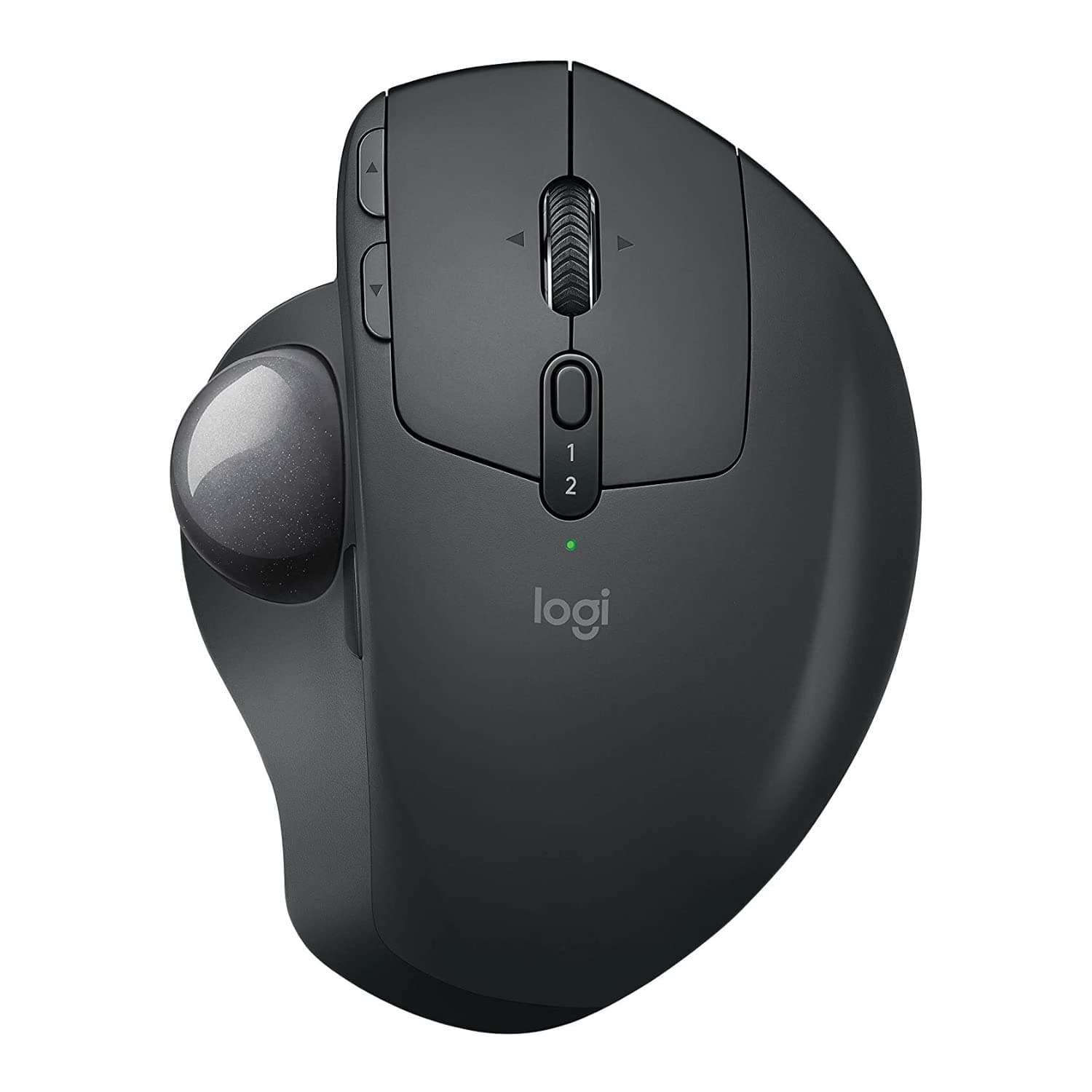



🎯 Elevate your workspace: precision, comfort, and control in one sleek trackball.
The Logitech MX Ergo Plus is an advanced wireless trackball designed for PC and Mac users seeking ergonomic comfort and precision. Featuring an adjustable hinge with an extra 10° wedge for customizable tilt angles (0°, 20°, 30°), it reduces muscular strain by 20% compared to traditional mice. Its precision mode button allows instant switching between speed and accuracy, while Easy-Switch™ and FLOW technology enable seamless multi-computer control. Powered by a rechargeable battery lasting up to 4 months, with quick charge capabilities, this trackball offers 8 programmable buttons and connectivity via Bluetooth or USB receiver, making it a premium choice for professionals prioritizing comfort and productivity.
| ASIN | B0768M8B5J |
| Additional Features | Wireless |
| Antenna Location | Office |
| Are Batteries Included | No |
| Are Batteries Required | Yes |
| Battery Average Life | 4 months |
| Best Sellers Rank | #37 in Computer Trackballs |
| Brand | Logitech |
| Built-In Media | Logitech Unifying USB Receiver, Logitech 'AAA' Lithium-Ion battery, User Manual |
| Button Quantity | 8 |
| Color | Graphite |
| Compatible Devices | Personal Computer |
| Connectivity Technology | Bluetooth, Radio Frequency , USB |
| Customer Reviews | 4.5 out of 5 stars 749 Reviews |
| Enclosure Material | Plastic |
| Hand Orientation | Right |
| Hardware Platform | PC |
| Item Dimensions L x W | 4.19"L x 2.01"W |
| Item Type Name | Mouse |
| Item Weight | 1.1 Pounds |
| Manufacturer | Logitech |
| Model Name | MX ERGO Wireless Trackball |
| Model Number | MX Ergo Plus |
| Movement Detection | Trackball |
| Movement Detection Technology | Trackball |
| Number of Batteries | 1 AAA batteries required. |
| Number of Buttons | 8 |
| Operating System | Windows 7, Windows 8 |
| Power Source | Battery Powered |
| Range | 10.0 meters |
| Special Feature | Wireless |
| Style Name | Ergonomic |
| UPC | 097855133922 |
| Unit Count | 1.0 Count |
| Warranty Description | 1 year Manufacturer |
A**7
Retired Senior -- It's Not That Hard To Learn
If it weren't for Repetitive Stress issues, I would never have considered a trackball mouse. Now that I have it, I wish I would have looked at it sooner. For me it was not hard to learn although there is an adjustment period. Simply adjust/experiment with the settings until it behaves the way you want and let your thumb get adjusted to its new responsibilities. I'd also recommend alternating between adjusting the settings and then using it awhile before adjusting it again. It may take a while for your hand to acclimate. Constantly changing settings may not be helpful. Pick a reasonably good setting; get used to the trackball; and fine tune later. After this, you can consider programming different button assignments for your specific needs. I'm also glad I purchased the Plus version. That extra 10 degrees was definitely helpful in my case. I like it at 30 degrees. In addition, it gives people the ability to increase the tilt by only 10 degrees. Just attach the plate and leave the Ergo MX in the zero degree position and the plate will give you 10 degrees. So instead of just 0 or 20 degrees built into the MX, you now have 10, 20, or 30 degrees. The wireless dongle and Bluetooth both work great as I use both routinely. At this juncture I am very pleased with my new Logitech trackball mouse and although it is a more expensive option, it is a quality built product. I like the fact that it is also a bit heavier than some similar products because it is less apt to move around. The only reason you might want a lighter option is if you travel a lot and you're trying to minimize weight at all cost. That said, unlike a traditional mouse where weight might be a concern for RSD or gaming, a trackball mouse is not being moved; so a little weight, in my opinion, is actually your friend. While certainly not necessary for traveling, I also bought an MX Ergo travel case for additional protection. It conveniently holds the MX , the charging cable, and the extra plate. While your mileage may vary, if you are trying to minimize wrist and hand stress, I can highly recommend the MX Ergo Plus.
M**K
My wrist stopped hurting on day 1!
My wrist gets really inflamed and sore with my normal mouse but I've feared trackball mice because I'm old and hate change. But the pain got so bad I was willing to try it. I am glad I did, and recommend this mouse. I think some of the key features make it worth the price to upgrade from a basic trackball. On the first day my wrist pain was gone. And the trackball is surprisingly easy to get used to. I feel like if I can use it this competently on the first 2 days that within a week it will be as easy as a normal mouse. PROS: - the adjustable tilt is great as I can easily change the angle depending on my position and what's comfortable at the moment. - there is a small button by the ball that changes to "precision" which makes the cursor move in a tiny area so you can hit precisely vs the mouse moving so fast with the ball. Even though I've found it easy to land the cursor over buttons and in cells in spreadsheets, this precision feature will come in handy maybe for working in design programs and things like that. Or hitting a small target. - programable keys. I made the up and down arrows on the left to be copy and paste which is handy! - mouse-caused wrist (and some shoulder) pain subsided within the first day! It's not GONE GONE but compared to how it was it is drastic. I hope it gets even better with time. - Learning curve for a trackball is easier than I feared. - I connected it via bluetooth so it leaves a USB port open - I actually left my other mouse connected via USB so that I can swap them easily if I want to use a regular mouse for something. - You can use it while it's charging but it's wireless when not charging. I don't know how long a charge lasts yet. It's a standard micro USB charger I believe. - It's easy to switch between machines with the 1/2 button in the middle of the mouse, so I can use it with my laptop as well if I wanted. - You can adjust the trackball speed. I have it at 40% and it's comfortable to manage. - Their app makes it very easy to program the buttons from their preset options (a drop down of functions you can choose from for each button.) You can also program a default setting for the buttons and a different set of button functions that will automatically switch to when using your web browser. (So maybe I don't want the button to Copy/Paste, I want it to FWD/BCK instead when in Chrome.) CONS: - the one I got the right click didn't work and I had to return it for a replacement. - I wish it could tilt forward and backward as well as left and right. My desk is a sit / stand desk and the angle is awkward when I'm standing and reaching down to the mouse because it bends my wrist to hold the mouse correctly. I might just keep the other mouse connected to use when standing. - The add on riser is a little slick on the bottom and will move on my desk w pressure. I put it on a mouse pad and it works fine. I recommend a mousepad with the double bumps (NOT a single ridge) at the wrist to settle your hand into. Usually they are tacky anime b**bs or bu**s but they do make them in dog and cat or plain work-friendly ones (search amazon for "ergonomic wrist mouse pad anime but be aware it's a bit NSFW for a lot of the results!) They are SOO comfortable and pair nicely with this mouse to hold your wrist in a single position. - The clearance of the mouse is a bit higher than I am used to so I have to lift my hand up first to pop back over to the keyboard. It's a slight nuisance but will probably be second nature soon - You need a logitech app to change mouse settings. I hate having apps for everything, but that said, it made it VERY easy to do basic button programming choosing from their options. I haven't explored more advanced button programming.
A**W
superb
superb trackball. Fits my large hand super well and very comfortable to use. highly recommend for anyone looking for a high quality trackball mouse.
T**O
Lacks a couple of features that competitors get right but it gets the basic job done
A little bulkier than I'd like but it's working great with two different Macs (OS 10.15.7 and 11.7.10). I wish this had three device switch instead of two. One switch it for the dongle it comes with and the other is for bluetooth but there are competing devices out there that can handle two bluetooth devices at once. Another issue I have with it is that it only has two resolution settings—again other competing devices have more than just two resolutions for the pointer. I'm definitely keeping this though—I'm hoping it last as long as some of the old wired trackballs it has replaced; it definitely feels solid so I'm hopeful I'll get many year out of it. NOTE: The metal bottom plate on the Plus version is held on magnetically and there's a magnet on the palm unit too so if you have a metal surface without the plate the palm unit will stick to the surface. Definitely be aware of this if you have magnetic or electrically sensitive equipment near where you are resting the Ergo.
A**R
Trackball is not a mouse, don't move it )
Well, that's my 1st trackball, after years of different ergonomic devices, including "vertical" ones. Last 3 years I was using Logitech MX Vertical and it was totally fine, but I wanted to try something else for very compact places. With trackball there is no need to clean the table and mouse bottom, no need to move the whole arm, but it requires adaptation time and strong thumb. After just few hours with it I got used to most of the actions. The most contributing action is selecting the text, you have to press the button while moving the thumb, with all my passion the accuracy is not perfect, I had to complete with help of the keyboard. Also consuming is the dragging objects, cause again - you have to coordinate two fingers, something that most users are not get used to. Still - the device is awesome. I have to say that mine came as RB (refurbished) so it didn't got the wedge with it (adds 10 more degrees to it's 20), so it's not the same feeling as holding the vertical mouse. I guess ergonomics with the wedge is even better, still 20` is much more comfortable that flat 0. Very high quality device, the ball is removable for cleaning, scroll has tilt for horizontal scrolling. Recommended for those who seek the best quality and sick for ergonomic device!
J**U
The best mouse EVER!!!
The best mouse EVER!!! This is the second one I have, the previous one had a long and productive life, but cannot ask for more from it... great battery, connectivity and accuracy. But the best, by far, is the ergonomics. This one, with the extra 10°, just got even better!!!. Totally recommendend!!!
K**G
It takes some time to transition from a standard mouse
I had a ton of pain in my hand. Not my wrist, but more in the palm of my hand from the constant gripping of the mouse to pick it up and re-position it. I changed from a wireless mouse to a wired mouse to reduce the weight. I also switched from my right to my left hand (really hard) but then got the same pain in my left hand. The Logitech MX Ergo Plus is a game changer. I am now pain free! Most of my mouse work is browser based research on a dual monitor setup. Constant clicking, changing tabs, and changing applications. You must be patient as the mouse takes some time getting used to. For example, I had to learn to remove my thumb from the trackball before releasing the pointer button or the data that I had highlighted with a click drag would lose focus. I also had to ensure that my laptop screens are at the correct level for sliding across screens. I do find that it is more difficult to do fine work (but the MX Ergo Plus changes pointer speed to very slow mode with a click of the side button). I am now many months of daily use and I seldom get any pain in my hand. I will say that the older mouse is likely a little faster to use - but I gladly give up a little speed for no more pain!!
W**A
Love! - except the battery…
Update 2- Caved and purchased a new one, opted for the 4yr add on warranty for $15 more. I will never purchase refurb products again to save a buck. Lesson learned, or was it considering I just dropped another $100 for another. It’s an awesome product when it works right. Clicks turned into double clicks and I couldn’t yr take it anymore. Ugh. *update So. I love this thing, but not if it doesn't work. And even though I haven't even had it a year - the warranty expired last September according to Logitech. So much for a year warranty - hello there seller. Something is messed up with a sensor, I assume. Blowing it with air did not work, cleaning did not work. Double clicks, not holding a click and drag, all the every day functions are not doable. Thankfully I held on to my older trackball, with a real battery, but that one doesn't switch between the PC and MAC like this does. SO disappointed in this item!!! *update It’s now early Feb (purchased this in December) and I now I have a huge gripe! Worth of removing two starts gripe! What the heck is up with the battery??? For $100 it should hold a charge longer than it does. This thing is amazing - but having to constantly plug it in stinks! If they couldn’t give it a good battery, why make it internal!! My old Logitech trackball would last months on a AA battery! I don’t even use it daily. I still love it, and afaik it’s the only one to support flow, or else I wouldn’t recommend it as it’s a very annoying issue. Luckily the majority of my time using it is at home, but I need to be very aware of having that charge cord with me if I’m not! Not cool Logitech. Not cool at all. My only gripe with this track ball is that the clicking is so loud! Other than that, I love everything about it. I am able to use it on both my PC and my Mac, and go back-and-forth between them seamlessly. I had no problems having either computer recognize the track ball, which made the price tag hurt less lol. IMO, very pricey, but in the long run, I think this will be worth it! This is now my third logitech track ball. I was trying to avoid getting this one, but after the Mac, but it just made sense. I have loved every every single one that I have owned, and only the first one died on me after almost 10 years of use. This one includes two extra pieces to raise the track ball, which makes it even more comfortable now to use. Thank you Logitech! I will never use a mouse, or a track pad, again. Highly recommend Logitech! Now just make a buffer for us to stick somewhere to silence the clicking. I never noticed how bad it was (even on my previous two!) until using it in public and around others in general!
Trustpilot
Hace 1 mes
Hace 1 semana