We remain fully operational. Our teams are working around the clock to ensure your deliveries continue safely.

Descargar la aplicación


Servicios al cliente
Sobre nosotros
Copyright © 2025 Desertcart Holdings Limited
Descargar la aplicación
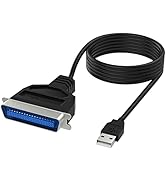
![USB 2.0 to DB25 IEEE-1284 Parallel Printer Cable Adapter [THUMBSCREWS Connectors] (CB-DB25)](https://m.media-amazon.com/images/I/71yi0uZiWIL.jpg)


🖨️ Bridge the old with the new—print like a pro, no compromises!
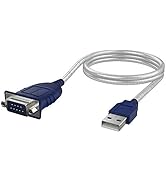
The SABRENT USB 2.0 to DB25 IEEE-1284 Parallel Printer Cable Adapter (CB-DB25) is a plug-and-play solution designed to connect legacy parallel port printers to modern USB ports effortlessly. Featuring secure thumb screw connectors, compatibility with most printers, and a lightweight, tangle-free design, it delivers reliable performance powered by 5V DC. Highly rated and easy to set up, it’s the perfect tool for professionals needing seamless integration of vintage printing hardware.


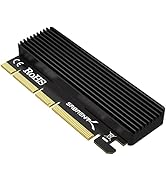
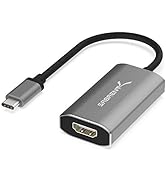
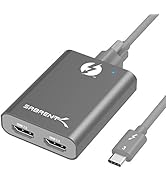
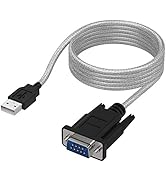
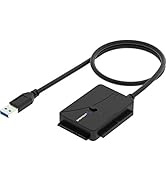
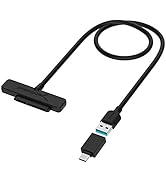
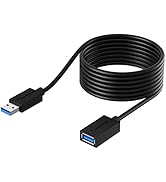

| ASIN | B00IDUD61Y |
| Best Sellers Rank | #2 in Parallel Cables |
| Brand | SABRENT |
| Cable Type | USB |
| Color | Black |
| Compatible Devices | Printer |
| Compatible Phone Models | Not compatible phone models |
| Connector Gender | Male-to-Female |
| Connector Type | Usb |
| Customer Package Type | Standard Packaging |
| Customer Reviews | 4.3 4.3 out of 5 stars (4,600) |
| Data Transfer Rate | 0.01 Gigabits Per Second |
| Date First Available | February 12, 2014 |
| Global Trade Identification Number | 00819921011343 |
| Indoor/Outdoor Usage | Indoor, Outdoor |
| Is Discontinued By Manufacturer | No |
| Item Dimensions LxWxH | 10 x 7.2 x 2.2 inches |
| Item Weight | 3.52 ounces |
| Item model number | CB-DB25 |
| Manufacturer | SABRENT |
| Maximum Voltage | 5 Volts (DC) |
| Model Name | CB-DB25 |
| Number of Items | 1 |
| Number of Pins | 36 |
| Product Dimensions | 10 x 7.2 x 2.2 inches |
| Recommended Uses For Product | printers |
| Shape | Round |
| Special Feature | Tangle Free |
| UPC | 819921011343 |
| Unit Count | 1.0 Count |
J**E
Works well with HP LaserJet 4050
A pre-20th Century IEEE parallel port connector to more recent USB variant is what you need if you have an old but built to last and still working well machine that needs one. In my case, a 1999, HP LaserJet 4050, high speed workhorse. After scrounging through HP’s Legacy driver pages, I found two that supposedly worked: postscript and native HP talk. Installed them both and the native driver worked no issues.
M**T
Works just like a cable should
Used this to connect a very old HP LaserJet 4M. The old cable just stopped working, probably got damaged by my movers, but it appeared to be fine. The print job would act like it was working, but the printer would just flash and then nothing would happen. This cable solved the problem. Works just like it should. No more print issues. Quality is good.
J**R
Cable works fine, but many old printers are not supported in Win 10
This cable may or may not work for you, but it's not the cable's fault. My old HP LaserJet 4, looks and works like brand new, but I haven't used it for a while since newer computers have no printer port. I needed a printer for shipping labels in a separate location in my home and when I saw this cable I thought my problem was solved, but my computer, an HP laptop, with Windows 10 Pro, didn't even recognize anything had been plugged in when I connected it. Before troubleshooting, I ordered another cable like this from another company and the same thing happened so I decided to look further. I have several computers so I connected another laptop with a dual boot installation, Windows 7 home and Ubuntu Linux 16.04 LTS and it works with both. I had to use the manual setup because it isn't recognized like USB printers usually are. Connect the printer to the laptop and click add printer. Windows 7 wants to scan for a printer which it won't find, but click on the line saying yours isn't in the list. Choose local printer, then choose the port. Scroll down the list provided and you'll see a USB virtual printer port, select that. Then choose your make and model, in my case, the HP LaserJet 4. It will load the driver, ask if you want a test page, which you can print to confirm, and you're done. Works great. Linux is also easy. Click add printer, select the USB port, select the make and model of the printer, print a test page. Works great. You're done. Windows 10 is another story. In my case, there are no current drivers for the LaserJet 4. You can go through the same procedure, click add local printer, there's a USB port option, but if you have an old HP printer like, mine, when you select HP, the long list of models presented does not include a lot of very popular, but old models, like my LaserJet 4. Looking around on the web, lots of sites say they have a driver, but they look a little sketchy to me, you can try those at your own risk. So, bottom line, cable does what it's supposed to do as long as your operating system has a driver. If it's the latest update of Windows 10, there are a lot of old printers that are no longer supported. Since I have one computer where it does work, I stopped investigating. There might be a way to get Windows 10 on board, but it's not plug and play.
A**N
Works for old printers
Needed a replacement after my old one finally had too many cuts
T**R
Did not work.
Appears to the OS as a USB device rather than a parallel port device. Granted, I am not using it for a printer, rather a hardware key and the software is specifically looking for a parallel port apparently.
D**V
awesome cable, works great
Many of us have newer computers that lack parallel printer port, but have old laser printers that are work-horses but incompatible due to newer USB connections. With help from this cable, i was able to use my Brother MFC 4650 multifunction printer (from 2000), and printer is working flawlessly in 2017 with windows 7, windows 10 computers.. The review written by 'Wally Waffleson January 22, 2015" was the most helpful. I am rewriting his/her suggestions: -------------------------- Installation Guide: 1) Plug the Sabrent cable into the back of your ancient printer. 2) Turn on the printer. 3) Plug the cable into a USB port on your PC. Windows should automatically install drivers for the USB device, and when it's done it will report the following devices as "Ready to use": "USB Printing Support" and "No Printer Attached". 4) Open the control panel's Printer listing, and select "Add a printer." 5) Select "Add a local printer." 6) When prompted to "Choose a printer port," select "Use an existing port," and from the drop-down list find and select the item containing "Virtual printer port for USB." It may look something like "USB001 (Virtual printer port for USB)." 7) When prompted to "Install the printer driver," if you cannot find your ancient printer listed, click "Windows Update." The installer will contact MicroSoft's online database to search for more printer drivers. This WILL take several minutes. 8) If you still cannot find your printer, refer to your printer's official documentation (a web search may be necessary) to see if it lists any "compatible drivers." (My printer's manual lists 9 alternative printers with compatible drivers. I selected "Epson LQ-570+ ESC/P 2" which was a successful match.) 9) Click "Next" and continue the printer installation to the end as normal. 10) Once the installation is complete and you are prompted to print a test page, print a test page to confirm your success! Troubleshooting: 1) If your print job sits in the queue for a long time before eventually changing its status to "out of paper" even though the printer is clearly not having any paper issues, your cable probably is not plugged all the way into the printer. Ensure the plug is in all the way and try again. (After my first hour of trying to get the printer to work, I discovered the cable wasn't plugged in all the way, despite the cord catch successfully latching.) 2) If your printer is printing random garbage, you probably installed the wrong driver. Install a different driver and try again. 3) Consult the original manual for your printer. Fortunately, many old technical manuals can be found in PDF form on the internet. 4) If you unplug the USB cable from your computer, then plug it back into a different port, your computer WILL think you have plugged in an entirely new device. You will have to either plug the USB cable back into the same port you originally used, or reinstall the printer drivers.
J**R
Works like a charm
Works like a charm.
B**S
usei o produto para ativar uma roland cx24 antiga e funcionou maravilhosamente bem
E**A
Excelente. Funciona de maravilla mejor que el mismo producto en el mercado.
H**A
Bought to connect an old Star LC10 Dot Matrix Printer to a Linux Laptop. It worked perfectly. Will need to comment later on how it holds up with regular use, as I have just started using it. Fit good. Connectivity good. Value - good.
E**N
A permis d'utiliser une ancienne imprimante Brother à port parallèle via un port USB d'un PC sous Windows 7.
J**G
EL producto llegó correctamente. La longitud del cable es aceptable. Además, venía con un alargador USB que no he necesitado usar. Funciona a la perfección. Probada con una impresora de tickets de EPSON.
Trustpilot
Hace 2 semanas
Hace 1 semana